
How to Transfer Movies from MovieBox to Phone, PC, or SD Card
Downloading movies in MovieBox is easy, but accessing those files outside the app can be confusing for many users. By default, MovieBox stores videos in a restricted folder, which makes it difficult to watch them on other devices like a PC, TV, or external player.
In this guide, you’ll learn how to transfer movies from MovieBox to your phone storage, computer, or SD card using simple and safe methods. Whether you want to free up space or enjoy movies on a bigger screen, this step-by-step guide will help you do it quickly.
Where MovieBox Stores Downloaded Movies
Before transferring anything, it’s important to understand where MovieBox stores files.
Unlike normal downloads, MovieBox saves videos inside its app data storage. This location is hidden because Android protects app folders for privacy and security.
Typical path:
Internal Storage → Android → Data → MovieBox → Files / Downloads / Media
Select the movies you want to transfer and continue the process.
Why Transfer MovieBox Movies?
Although MovieBox allows offline viewing, transferring movies provides additional benefits:
- You can watch videos without opening MovieBox.
- Files can be moved to PC, TV, or SD card.
- Sharing movies becomes easier.
- Device storage can be organized better.
Methods to Transfer Movies
In this guide, we’ll walk you through the most effective ways to move your MovieBox downloads quickly and safely.
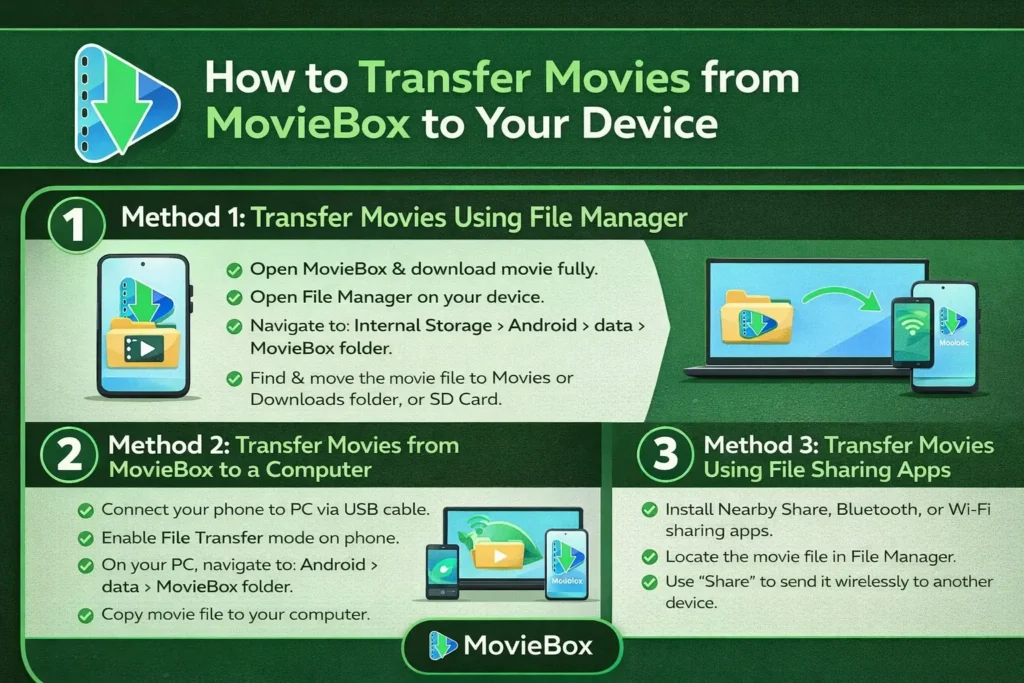
Method 1: Transfer Movies Using File Manager
The fastest method is the transfer of videos using your mobile file manager, which is less technical and preferred by many users.
Download the Movie Completely
Open MovieBox and download your movie fully. Incomplete downloads will not appear correctly.
Open File Manager
Launch your phone’s File Manager application. Most Android devices already include it.
Navigate to App Storage
- Scroll inside your app and go to Internal Storage, Android, and then Data
- Scroll until you find the MovieBox movies folder.
Open the Download Folder
Inside the MovieBox directory, open folders such as:
- Files
- Downloads
- Media
You should now see video files.
Move or Copy the Movie
Long-press the movie file and choose:
- Copy to keep the original file, or
- Move to remove it from the app folder.
You can paste the copied file into:
- Movies folder
- Downloads folder
- SD card storage
Method 2: Transfer Movies from MovieBox to a Computer
If your phone storage is low, transferring movies to a PC is the best option. The process is explained below
Steps to Transfer Files
- Connect a USB cable to your mobile and laptop for safe transferring of the movies.
- Your phone storage will open in your computer, then navigate to:
Android, then Data, and then to the MovieBox movies folder
- Locate downloaded movies.
- Copy files to your computer.
Method 3: Transfer Movies Using File Sharing Apps
You can also share the movies from the MovieBox app to another mobile using a file-sharing app wirelessly.
Steps to Transfer Movies from MovieBox to another device
- Install a file-sharing app on both devices.
- Open File Manager on the sender device.
- Locate the MovieBox download folder.
- Select the movie file.
- Tap Share and choose the sharing app.
- Accept the transfer on the receiving device.
Common Problems and Fixes
Many users face small issues during transfer. Most are easy to solve.
| Problem | Solution |
| Movie folder not visible | Enable “Show hidden files” in your mobile File Manager app |
| Cannot access Android/Data | Use the PC transfer method |
| Movie not playing | Install VLC or convert the file to MP4 |
| Transfer stops midway | Reconnect the cable or restart devices |
| File size shows zero | Download may be incomplete |
These problems are normal and usually related to Android security settings.
Safety Tips
A few simple habits can prevent data loss:
- Always confirm downloads reach 100%.
- Avoid deleting original files immediately.
- Keep enough free storage before transferring.
- Do not rename files during transfer.
- Use trusted file manager apps only.
Small precautions save time later.
Best Video Format for Smooth Playback
Sometimes transferred files don’t play properly due to format issues.
- MP4 is the most compatible format
- Some files may need conversion
- Avoid renaming file extensions manually
For better playback, use reliable media players like VLC Media Player or MX Player.
Can You Watch Transferred Movies Without MovieBox?
Yes. Once transferred, the movie becomes a standard video file. You can watch it using:
- VLC Media Player
- MX Player
- Smart TV players
- Laptop video software
No login or internet connection is required afterward. My Favorite Player is VLC Media Player.
Quick Summary
– File Manager → Fastest and easiest method
– PC Transfer → Best for large files and backups
– Sharing Apps → Best for wireless transfer
Final Thoughts
Transferring movies from MovieBox is simple and highly useful. It allows you to free up storage, watch videos on different devices, and enjoy a better viewing experience on bigger screens. By following the methods above, you can easily move MovieBox downloads and access them anytime without limitations.
FAQs
Can I transfer movies from MovieBox to my PC?
Yes, you can easily transfer movies using a USB cable. Connect your phone to a computer, locate the MovieBox folder, and copy the files.
Why can’t I find MovieBox files in my phone storage?
MovieBox stores files inside the Android/Data folder, which is hidden in many devices due to security restrictions.
Which app is best for playing transferred movies?
Apps like VLC Media Player and MX Player support multiple formats and provide smooth playback.
Is it safe to transfer movies from MovieBox?
Yes, transferring files is safe as long as you use trusted apps and avoid modifying system files.